2 Installing R
2.1 What is R and RStudio
R is the programming language software that will run the code we want to execute. RStudio is a separate piece of software called an Integrated Development Environment (IDE), which basically acts as a wrapper for R, and allows us to run our code while also providing lots of additional helpful features.
You could run your code directly in R if you wanted to, but most people will use one of the many different IDEs that are compataible with R (e.g. VSCode, Positron). For this class we will be using R and RStudio, as it is relatively simple to set up and easy to use.
R is maintained by a core team of developers, and is hosted at the The Comprehensive R Archive Network (CRAN). RStudio is developed by a company called Posit. We will need to download both pieces of software separately.
If you will be using a University PC in any of the teaching rooms, R and RStudio should already be pre-installed on the computer. Search for Rstudio in the taskbar. You can also check if Rstudio is available to download via the Software Centre. If it is not pre-downloaded then try the method outlined below.
If you will be usuing your own computer, then use the steps below to install the software.
2.2 Installing R
The first step is to download R from The Comprehensive R Archive Network (CRAN) here: https://cran.r-project.org/.
Windows
Click ‘Download R for Windows’, then ‘base’, then ‘Download R-4.61 for Windows’ (when you do it, this will list the most recent version of R instead). This will download an R installer. Run this file to open the R installation wizard, which will walk you through the installation. You can just select the default options at each stage.
Mac
Click ‘Download R for macOS’, then select the package version for your machine ‘R-4.6.1-arm64.pkg’ (this will list the most recent version of R). Just like for windows, this will download an R installer. Run this file to start the R installation wizard, which will walk you through the installation. You can just select the default options at each stage.
2.3 Installing RStudio
The next step is to download the RStudio IDE desktop version from the Posit website here: https://docs.posit.co/ide/user/#rstudio-ide-oss-downloads
Select the correct download for your computer’s operating system (Windows/Mac/Linux). Once the download is complete, run the file to begin the installation wizard and follow the instructions. You can select the default options throughout.
2.4 Running RStudio
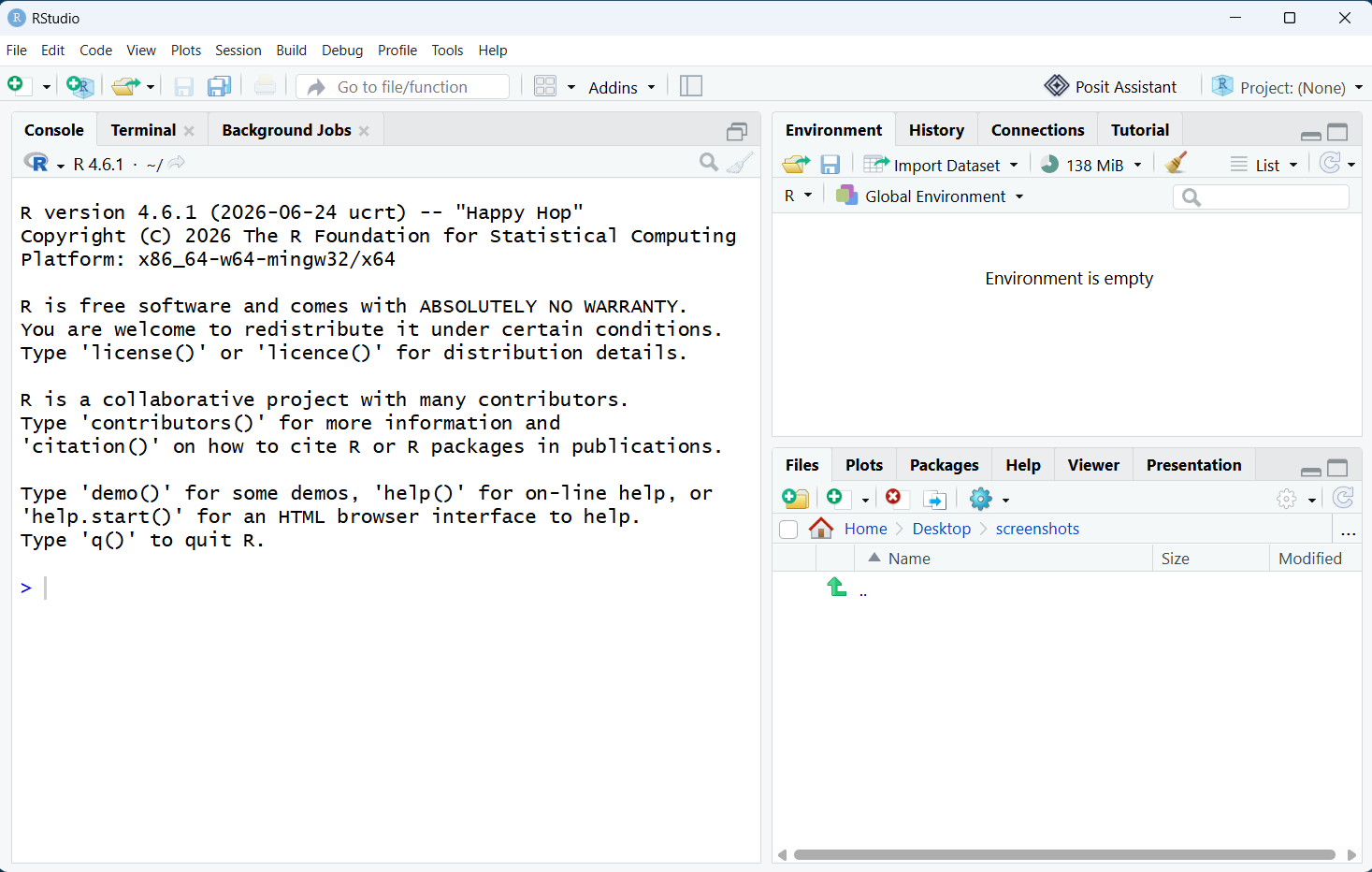
Once installed, you can now open RStudio. It should look like this: